

Gift icon
先從痛點出發,工具已準備就緒

將扁平作品轉成可用於動畫的圖層

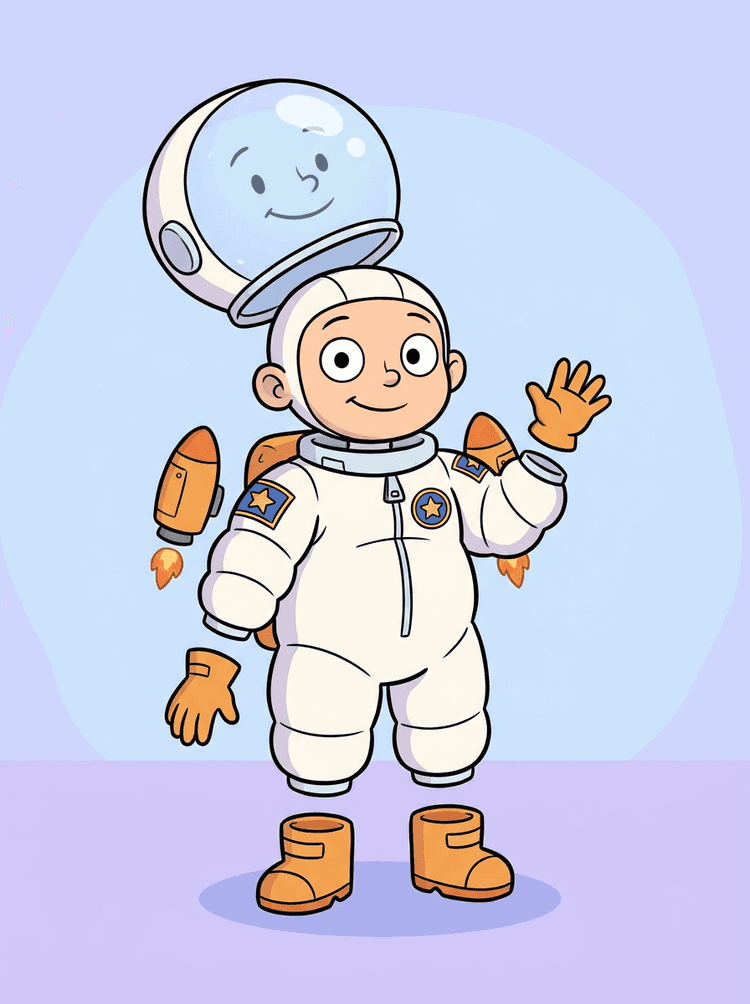
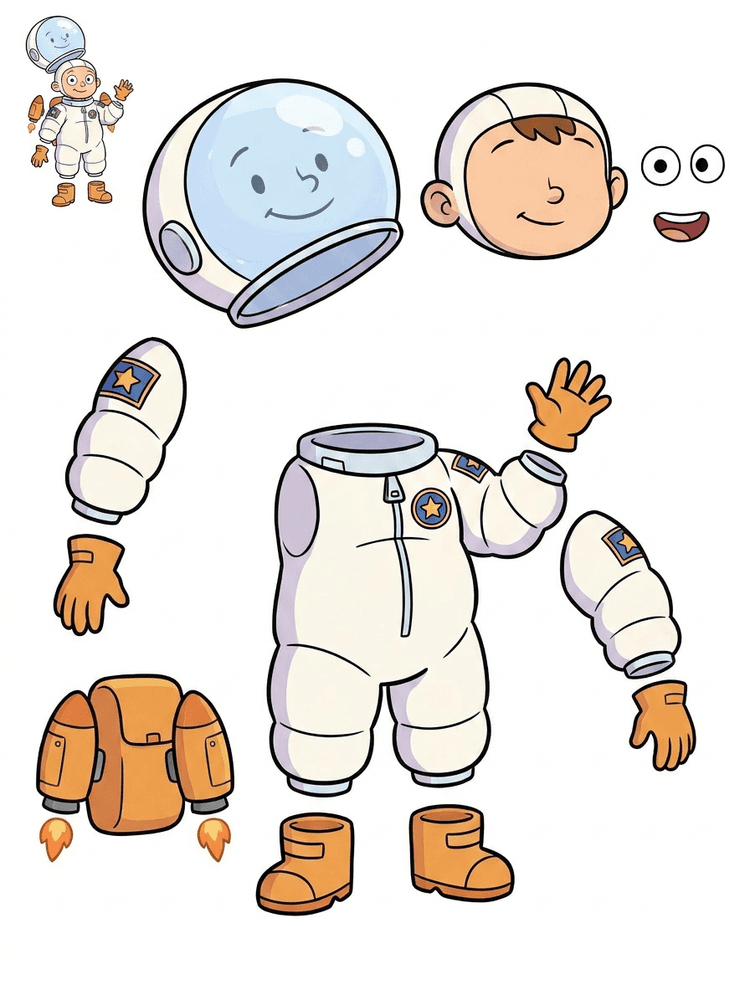
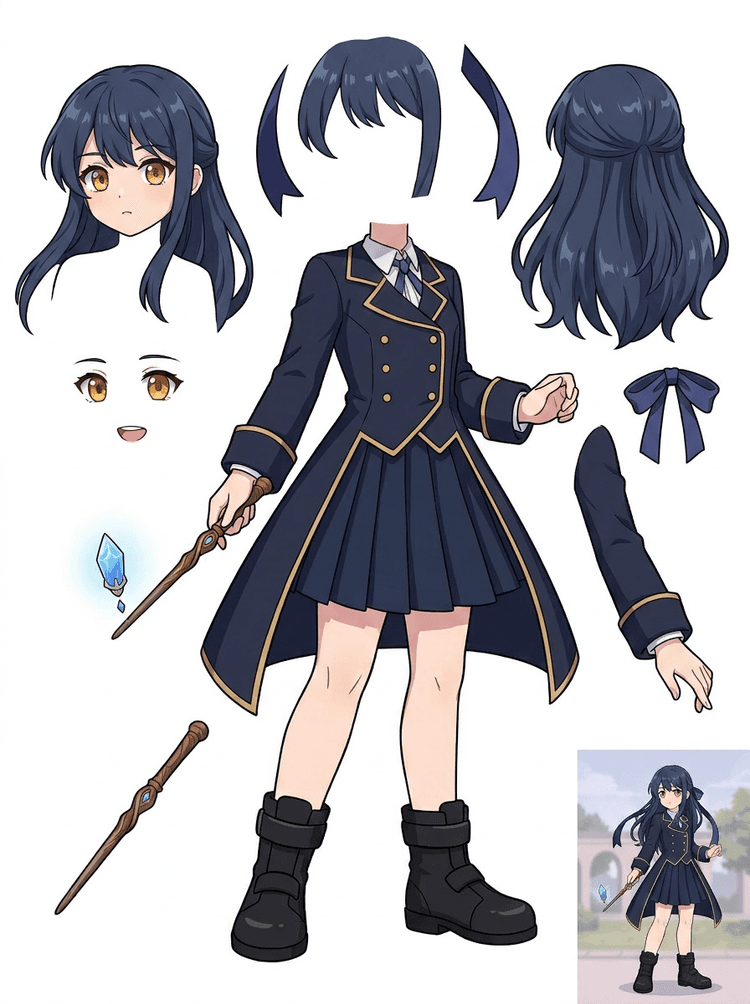
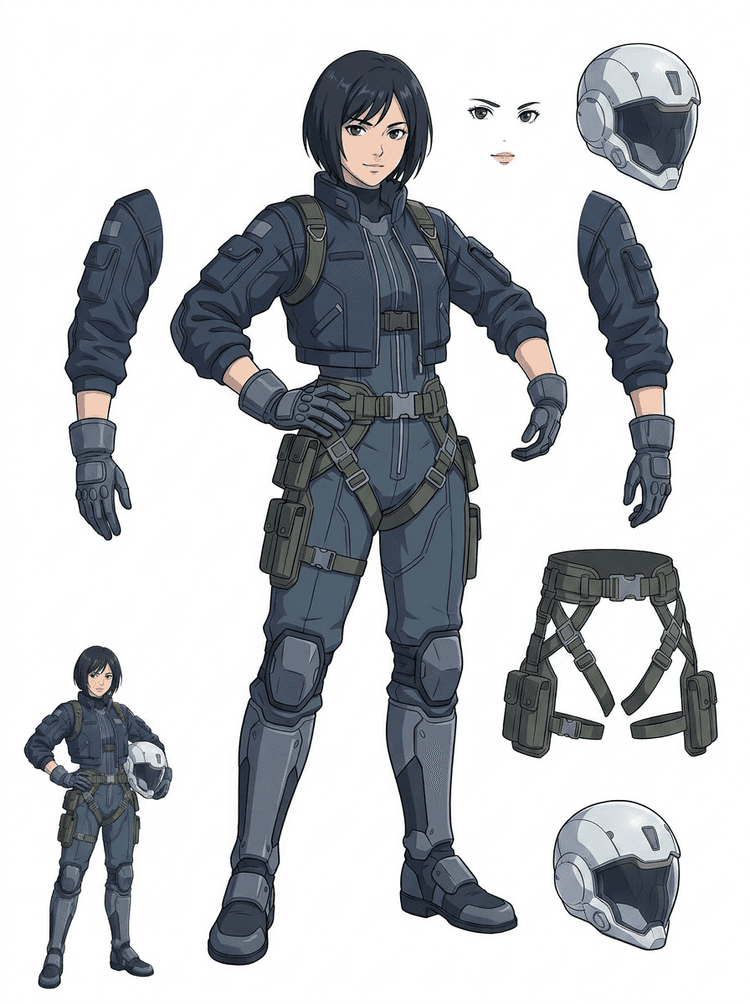
一張完成的角色圖片看似已經做完,但在頭髮、臉部、服裝、四肢、道具與背景分離之前,仍然很難製作動畫。上傳一張圖片,立即看見作品從扁平圖轉變為可用圖層素材的前後差異。

How it works

Image to layers in three clear steps

Treat AI Layer Splitter as the first clean pass: upload one image, generate a layer sheet, then use the result in your editor, animation workflow, or game asset pipeline.

  1. 1

    Start with one clean image

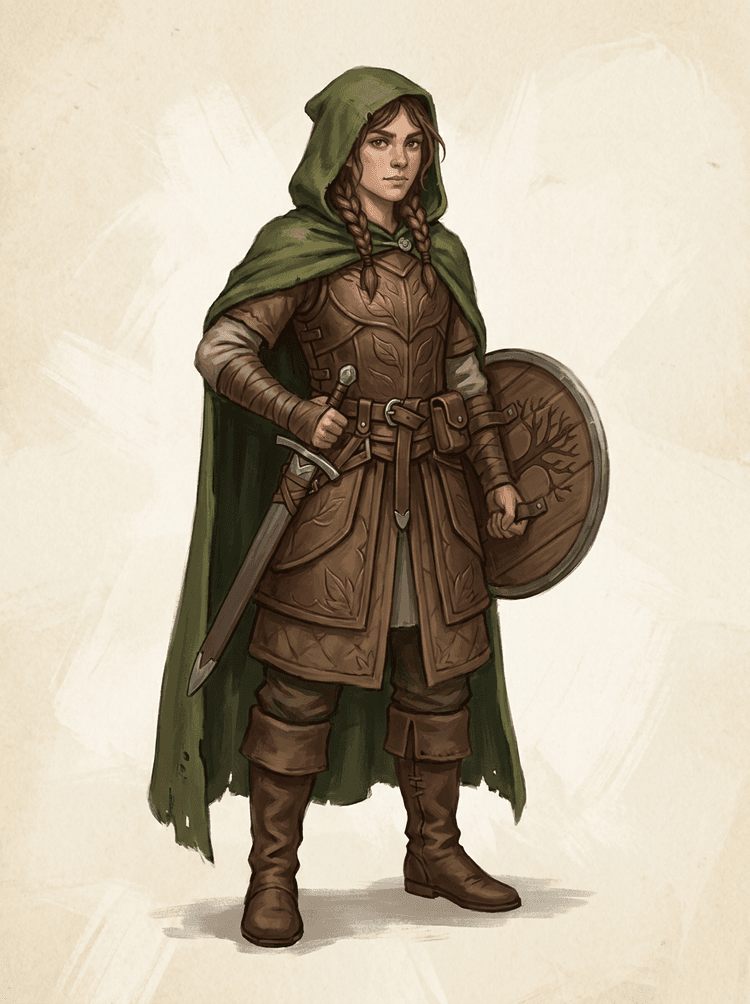
    Use full-body character art, mascot art, anime key art, game concepts, product shots, graphic designs, props, or product-style illustrations with visible edges.

  2. 2

    Generate the first sheet

    Quick Mode creates a fast visual checkpoint so the team can see hair, face, clothing, hands, props, shoes, background, text, objects, and accessories in context.

  3. 3

    Upgrade only when it is worth it

    PRO Mode is best after the first sheet proves the source is readable and the project needs a cleaner model pass.

  4. 4

    Handoff with confidence

    Use the downloaded sheet for motion blocking, rig planning, sprite references, repainting, or creative compositing.

The goal is a reviewable production starting point, not a vague AI demo.

Image layer search terms

A clearer path from flat image to editable layer assets

These workflows describe the same core need in slightly different search language: turning one finished image into separated visual parts that are easier to review, edit, animate, or rebuild.

image to layers

Turn one image to layers for production review

Image to layers means starting from one flat artwork file and creating a readable sheet of separated visual parts. AI Layer Splitter is built for this first-pass workflow: upload a cartoon character, game hero, anime design, product graphic, or mascot, then inspect foreground, background, objects, text, clothing, props, and accessories in one result.

  • Best for clean illustrations, graphic designs, product shots, and character art.
  • Useful before manual cleanup in Photoshop, Figma, Procreate, After Effects, or a game pipeline.

image layer separator

Use an image layer separator before detailed editing

An image layer separator helps designers and animators identify which parts of a source image can become editable assets. Instead of redrawing every element from scratch, teams can generate an asset sheet, compare the original with the separated result, and decide whether the source needs cropping, cleanup, Quick Mode, or a PRO pass.

  • Separate background, subjects, visible objects, text, and props automatically.
  • Preserve layout intent so the sheet still matches the source composition.

image separate layers

Create an image separate layers sheet for games and animation

Image separate layers searches usually come from creators who need practical assets, not just a background remover. AI Layer Splitter produces a downloadable sheet that can guide sprite prep, rig planning, motion comics, e-commerce edits, sticker variants, and character handoff. It works best when one clear subject has visible edges and minimal overlap.

  • Review character parts, accessories, equipment, and environment pieces side by side.
  • Use the sheet as a production reference before rebuilding final editable files.
Layer decomposition

AI finds the pieces,you keep the layout

AI layer splitter tool analyzes your artwork and identifies different elements like characters, backgrounds, and objects, creating separate layers. It uses AI to break down images while preserving layout, hierarchy, and design intent, and it works best with graphic design, illustrated products, character art, and clean game assets.

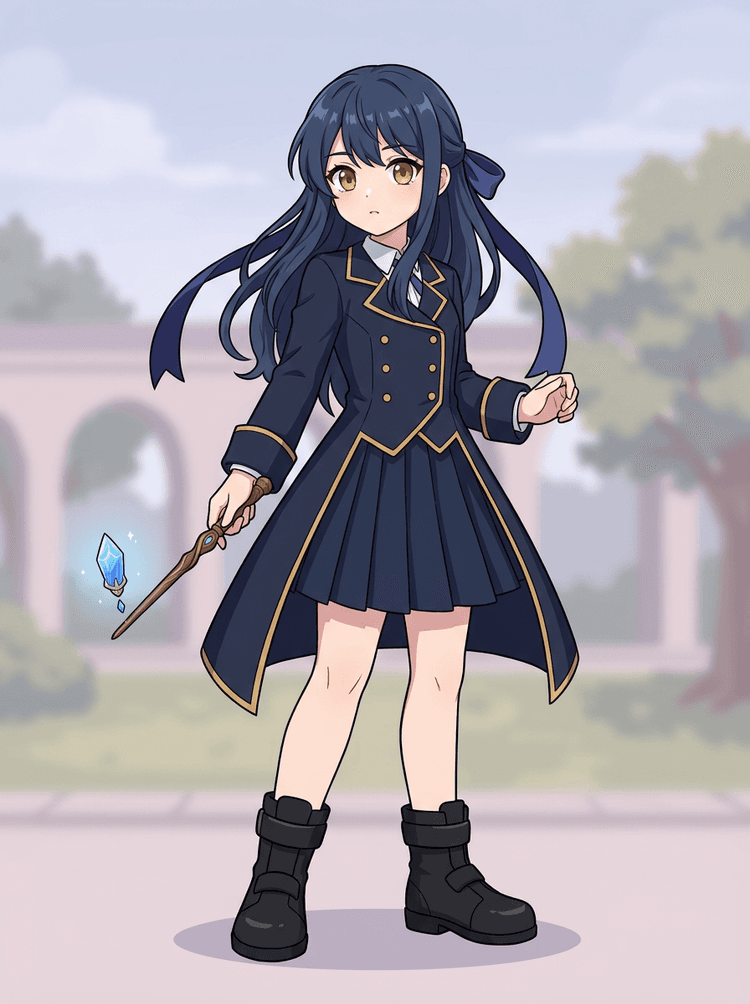
Source image
Part map
Asset sheet
Handoff
Layer Decomposition is an AI agent capability that separates a single image into logical, editable visual layers such as foreground, background, and objects.
AI-powered layer separation for designers, animators, and e-commerce teams. Separate background, subjects, text, and objects automatically.
Break game character concepts into practical references for sprites, UI portraits, inventory props, equipment variants, and animation tests with an AI layer splitter for game assets.
Use the first image separate layers sheet to decide whether the source needs cleanup, cropping, or a PRO pass before deeper production work.
Create a layer sheet
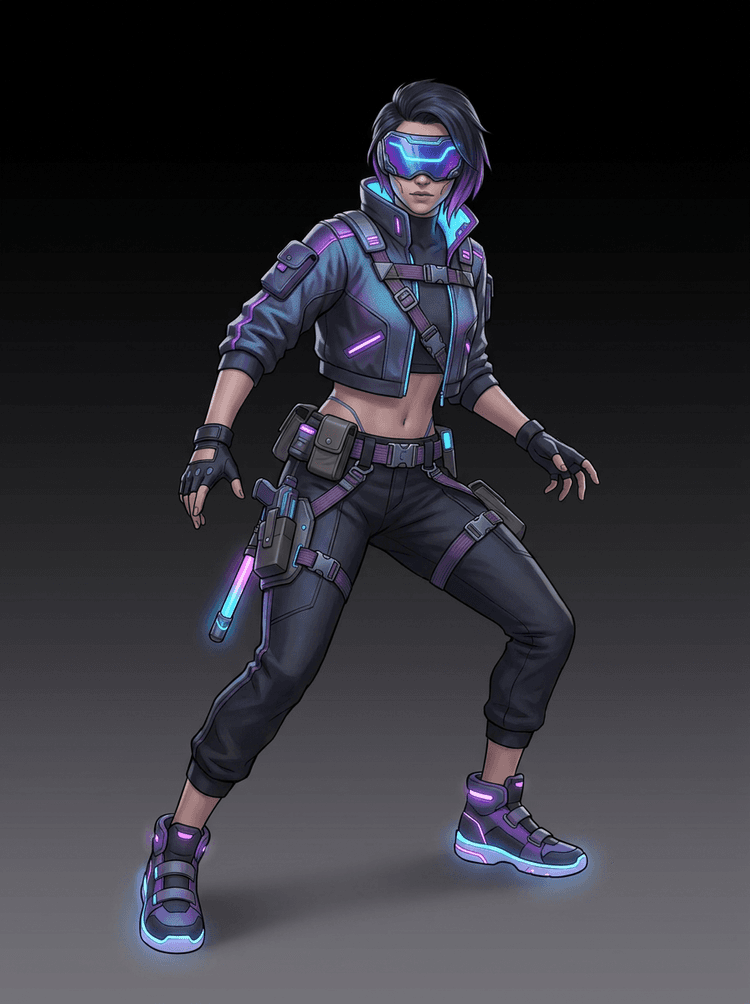
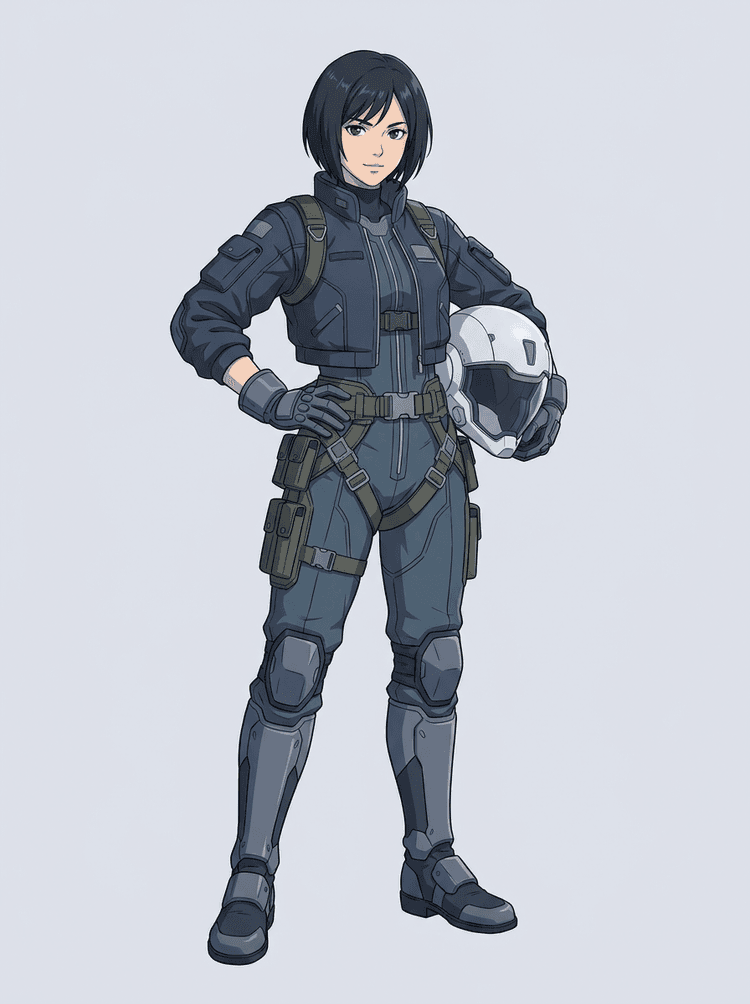
AI layer splitter pipeline showing a cyberpunk game character split into production asset parts

關於 AI 圖層拆分的常見問題

什麼是 AI 圖層拆分?

AI 圖層拆分會使用圖像模型,將一張扁平圖片分離為可用的視覺部件,例如角色組件、道具、前景主體、背景或動畫素材。

我要如何用 AI 將圖片拆成圖層?

上傳圖片,選擇 Quick Mode 或 PRO Mode,生成結果後,再下載素材表或分離的圖層輸出。

什麼是 Quick Mode?

Quick Mode 會從上傳的圖片建立一張整理好的素材表。它是為想要直接、易懂輸出的使用者所設計。

什麼是 PRO Mode?

PRO Mode 保留進階工作流程,為需要更多編輯控制的使用者擷取多張獨立圖層圖片。

我可以把 AI 拆分的圖層用於動畫嗎?

可以。這些輸出適合用於動畫分鏡阻擋、Live2D 規劃、視差效果、說話角色編修與遊戲素材準備。

使用它需要設計技能嗎?

不需要。Quick Mode 是為簡單的上傳後生成流程而打造;當你想要更高的獨立輸出控制時,也可使用 PRO Mode。

哪種圖片效果最好?

清楚的人物、道具、物件與插畫圖片效果最佳,尤其是主要部件清晰可見,且不被其他元素大幅遮擋時。

我可以編輯 AI 拆分後的圖層嗎?

可以。你可以將輸出作為參考表使用,或在 PRO Mode 中下載分離結果以進行編輯、合成與重繪。

我可以將結果用於商業用途嗎?

你可以依照你的 LlamaGen 方案與我們的條款使用生成輸出。同時也請確認來源圖片的權利允許你的預期用途。

有哪些限制?

非常細小的細節、嚴重遮擋、複雜透明效果與重疊部件,可能仍需要手動清理或再次生成。

What is the difference between Quick Mode and PRO Mode?

Quick Mode creates a fast reviewable asset sheet. PRO Mode uses an upgraded model for cleaner separation when the source image is readable and the project needs a higher-quality pass.

Will every image split perfectly?

No. Very crowded scenes, hidden body parts, overlapping subjects, sketch marks, heavy shadows, cropped limbs, or tiny accessories may still need source cleanup or manual finishing.

Can I use the result commercially?

You can use generated outputs according to your LlamaGen plan and terms. Make sure you also have the rights to the source image you upload.

Ready to split

Turn one character image into production-ready parts

Start with the preloaded sample, upload your own cartoon, anime, or game character, and create a reviewable layer sheet in minutes.